






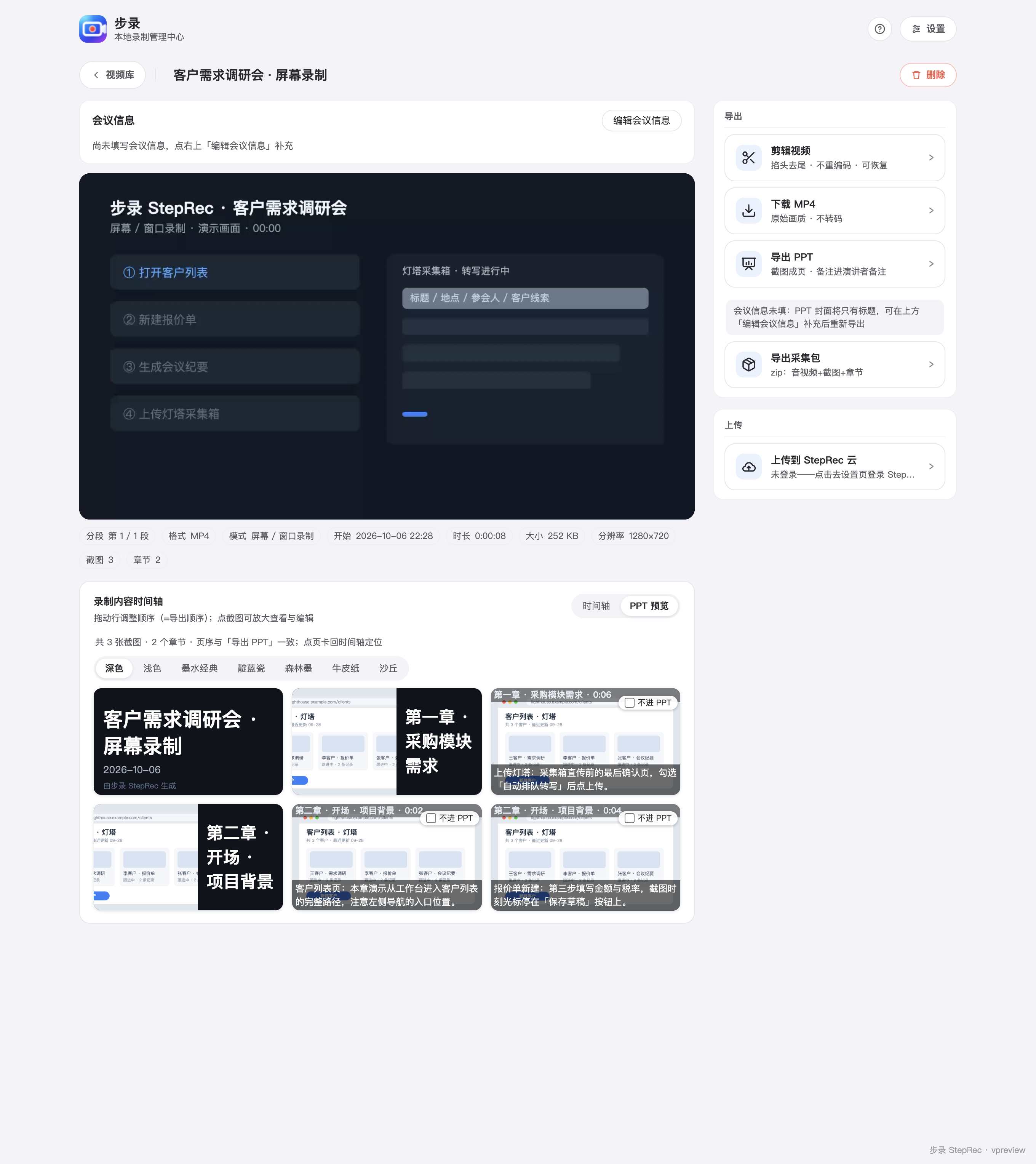
Chapter timeline
Chapters, screenshots and notes line up in time order; drag to reorder, and exports follow the same order.
Chrome Extension · Local-first · Early Access
Record while you work, capture the key frames, order them on a timeline, and export an MP4, a screenshot ZIP or a PPT you can send as is. Local recording, editing and export are free and complete; cloud AI transcription and generation are in beta.
Early Access · installation package by email
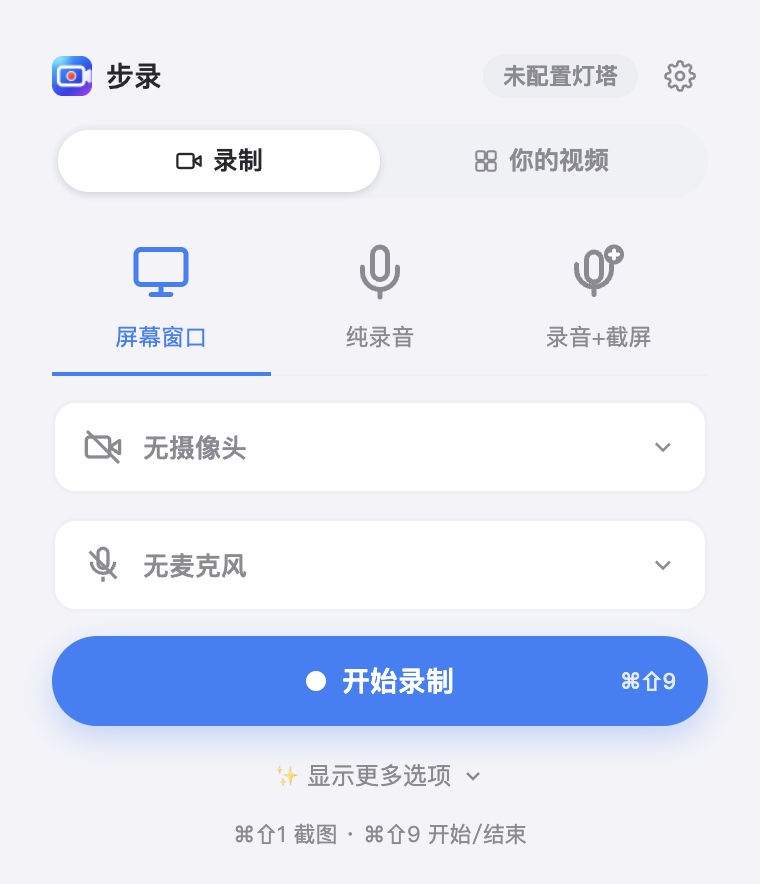
Product preview · Sample data
Recording, screenshots, organizing and exporting happen on one pipeline; local features are fully free, and cloud AI is in beta.
Record the whole desktop for walkthroughs, a single window for software demos, voice alone for spoken explanations, or audio with screenshots while reviewing an interface. Camera, mic and system sound are yours to enable.
Grab screenshots, mark chapters and annotate mid-recording. For frames you can’t catch by hand, smart capture watches for scene changes and adds them to the timeline automatically.
Turn speech into a transcript, then draft an SOP, meeting minutes or a knowledge entry from the same recording — you review and edit every result before using it.
Screenshots, chapters and notes line up in time order; exports follow the same order — MP4, screenshot ZIP or PPT in one click.
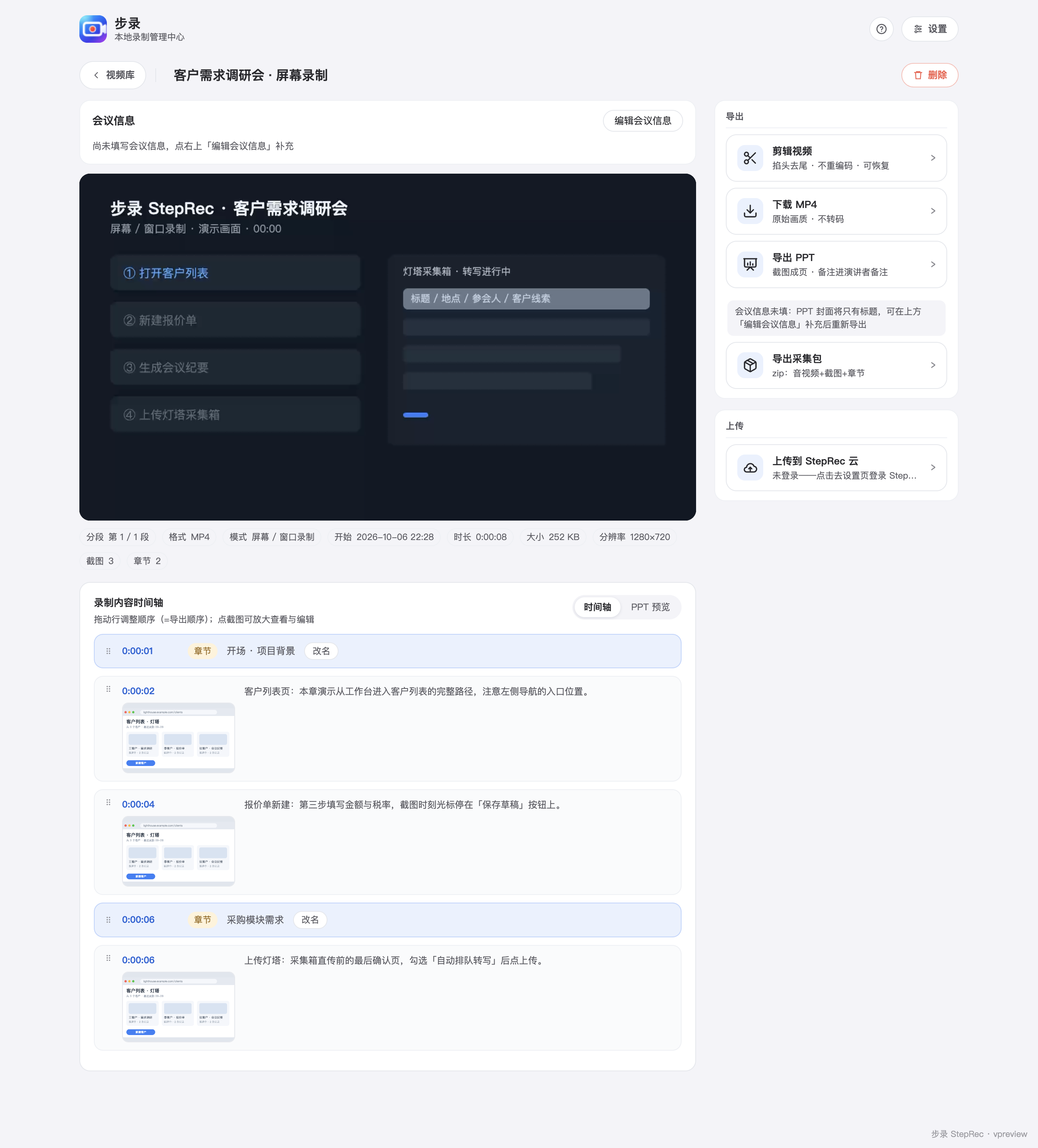
Chapters, screenshots and notes line up in time order; drag to reorder, and exports follow the same order.
Screenshots become slides in timeline order; notes land in the caption bar and speaker notes. Themes switch in one click — ready to present.
Turn it on and screenshots are added as the screen changes, covering key views you could not grab manually in time.
Recordings and screenshots stay in local IndexedDB by default; you choose when to upload.
Recordings and screenshots land in one library; chapters, notes and search make them findable later.
Recordings and screenshots managed together.
Readable filenames from the recording time.
Mark chapters while recording, then jump to them on replay.
Play any capture straight from the library — no folder digging.
Locate past captures by title, note or chapter in seconds.
The search index is built on your machine; nothing is uploaded.
Cloud AI · Beta
Document generation is a general template capability, not tied to one use: onboarding tutorials, product walkthroughs, work handovers and knowledge capture can all start from the same recording.
Local-first · cloud AI in beta
Example · General template · works for onboarding and handovers · 3 steps
01 Sign in and confirm your account permissions and available features.
02 Complete the basic setup following your team’s conventions, then save your preferences.
03 Run the core flow once end to end and confirm the result is ready to hand off.
Before sharing with a new teammate or handing over work, check the steps against your team’s actual environment.
Example · General template · works for standups, reviews and retros · 2 action items
Goal: sync progress and align this week’s assignments and risks.
Decision: move the delayed item to the next cycle and protect the delivery line.
Action: the project lead updates the schedule and shares it with the team.
Action: everyone submits a short progress recap by Friday.
Beta template example; verify decisions and owners against the original record.
Example · General template · for knowledge capture and sharing
Summary: when a file won’t open or can’t be found, check access and path first, then ask a colleague.
01 Confirm your account has access to the folder or file in question.
02 Check that the save location and naming follow your team’s conventions, and that you have the latest version.
Add new findings back to this entry so the whole team can search and reuse them.
Every card is a verifiable product promise or a real use case — not a user review.
Recordings and screenshots land in a local library first; editing and organizing happen on-device, with nothing uploaded automatically.
Export only when you need to collaborate — hand colleagues the MP4 or PPT file, or pass it to an external AI agent.
Transcription leads, with SOP, meeting-notes and knowledge-entry generation following — free allowance during the beta.
Frame a screen, window or region, record the steps once, then export MP4 straight into IM or email.
Turn a process into a tutorial with chapters and notes; shots become PPT pages in timeline order, notes on every page.
Capture every step in your key systems as a traceable record — search the library instantly and replay whenever needed.
Every promise above is open to verification — email support@xeyond.com. A real person reads it.
The free plan exports without a watermark and the local workflow is fully available. Pro is $20/mo ($240/yr with 3 months free); Team and Custom via email.
The full local workflow: record, organize and export — watermark-free.
$0
For heavy cloud AI use: higher proposed quotas and cloud archive.
$20 / mo
Billed monthly · proposed price
$240 / yr
3 months free · proposed price
A per-seat plan for teams, in preparation — not open for purchase yet.
$15 / seat / mo
From 3 seats · yearly adds 3 months + 1 online training
Scoped per project and quoted case by case; deep delivery is billed separately.
Prices are proposals; Team and Custom require email contact and are not open for purchase yet; local recording and export stay complete in the free tier.
Running into issues, or wondering if StepRec fits your team?
Questions, bugs, or something not working right — reach us.
Product fit, team plans and what is coming next.
Product updates and beta progress sync through the site and email.
Browse the FAQFAQ
By default, they stay in the extension’s IndexedDB on your device. Selected content is uploaded only when you choose cloud upload or AI processing. Cloud archive and AI are in beta; check the upload prompt for the scope. See the Privacy Policy.
The free plan completes the local workflow: four capture modes, trimming, timeline and screenshot editing, plus export to MP4, screenshot ZIP and PPT — no watermark and no product-imposed time limit; device storage and browser limits still apply. Proposed cloud quota is 60 transcription minutes and 3 generations per month; real payments are not open.
Screenshot notes appear in the slide’s visible caption bar and in its speaker notes. The caption bar is visible when presenting or sharing the PPT, so review notes before delivery. Screenshots become slides in timeline order.
Desktop Chrome and Chromium-based browsers such as Edge are supported. Request the early-access package and installation instructions by email. We do not claim a public browser-store launch yet.
Delete local items in the video library. Request cloud account deletion in Account Center and follow its confirmation flow. Deleting a cloud account does not clear local recordings on your device; export important files first.
Install the extension; your next recording becomes a deliverable.
Request beta by email
Could you circle the filter in step 2?